Customers 1st can notify you and your colleagues when something requires your attention – for example, a new booking, an item that has arrived for a work card, or a new order from the webshop. You choose which notifications each employee should receive.
Go to Settings → the General tab, and scroll down to Notifications
Check Enable notifications
In the table, click the field next to each employee under the notifications they should receive

For example, notify only the warehouse employee about stock transfers, and only the mechanic about items that have arrived for a work card.
New notifications appear by the bell at the top of the system. Click a notification to go directly to what it relates to.
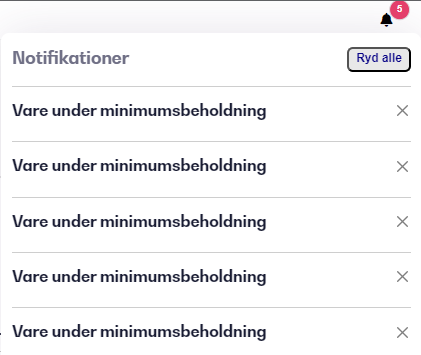
Item stock below minimum
When an item's stock falls below the minimum stock level set for that item.
Pending item on work order received
When you receive items into stock and there are now enough to fulfill a work order with the status New or Pending that is missing that item.
Stock transfer received
When another store in your chain has transferred items to your store.
SMS reply
When a customer replies to an SMS you have sent. Requires SMS reception to be enabled under Settings → SMS and Email.
New booking
When a customer books an appointment through your booking widget. The notification shows the customer, time, and work order number.
SMS messages sent
When a bulk SMS send is complete. Only the employee who started the send receives a notification—and only if more than one SMS was sent.
Overdue tasks
When a task on a work card has passed its due date without being completed. Only the employee responsible for the work card is notified.
External message
Messages from an external system or integration configured to send notifications to Customers 1st.
Export ready
When a data export you ordered is ready for download. Only the employee who ordered the export is notified.
Delivery method rejected
When another store has rejected the delivery method (pickup, shipping, or transfer) for one of your orders.
New incoming order
When your store receives a new order that needs to be handled as a pickup, shipment, or transfer.
Please note that Delivery method rejected and New incoming order are only shown in the table if you have the Omnichannel module.