The classic Black Friday offer is a fixed discount on all products in the store—there are usually a few exceptions. For example, we never include gift cards (product number “giftcard”), deposits (deposit), or vouchers (voucher).
In addition, there may be consumables, services, and other items that are not included in the campaign.
Below are a few examples of how you can set up one or more campaigns and schedule them for Black Friday, so you can simply show up and start selling.
Go to Products and select Campaigns in the upper-right corner.
Here you’ll find an overview of all active campaigns, and you can create a new one by clicking Add campaign.
Give the campaign an appropriate name, choose the discount type you want to use, and enter the rate.
If no product criterion is selected, the campaign will apply to all products in the store.
This campaign is set to give 20% off the entire store except gift cards, vouchers, and deposits.
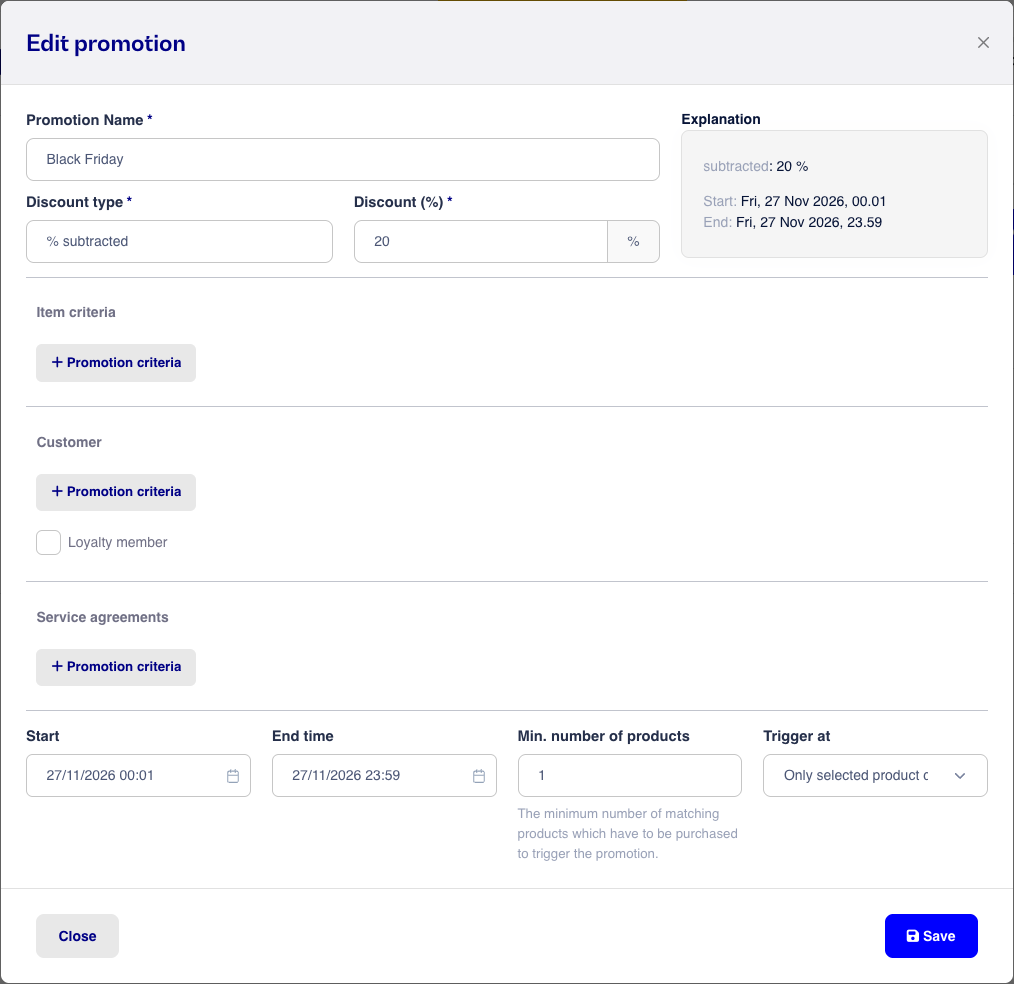
Note the start and end times. The campaign is defined to run from midnight on the night leading into Friday, 27/11/2026, through the same day until 23:59.
Once the date has been set, the campaign starts and ends automatically – so you can prepare your campaign in advance.
To create the same campaign but exclude, for example, services or individual products, you can add a product criterion.
Here you can add one or more products, product categories, or styles.
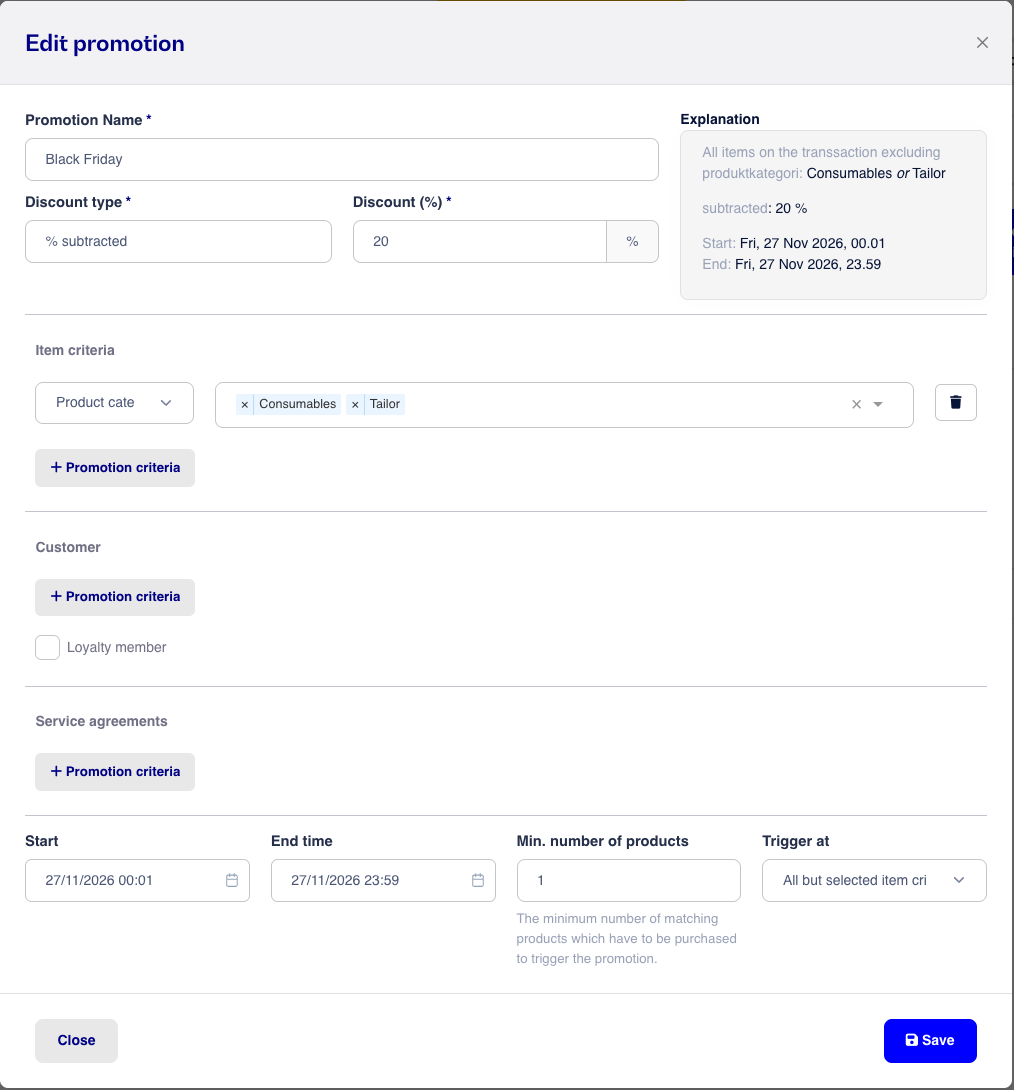
At the bottom right, you can choose whether the campaign should be triggered if the item contains the specified criteria or not. In the example above, we have created a campaign where all items other than those with one of the categories Consumables or Tailor added will trigger a 20% discount on Friday, 27/11/2026.