Under Products → Master data you can browse all products in the supplier database for your industry and country without adding them first. Use the list to find products, compare prices, and check the supplier’s stock status. The page is only displayed if your store has Master data.
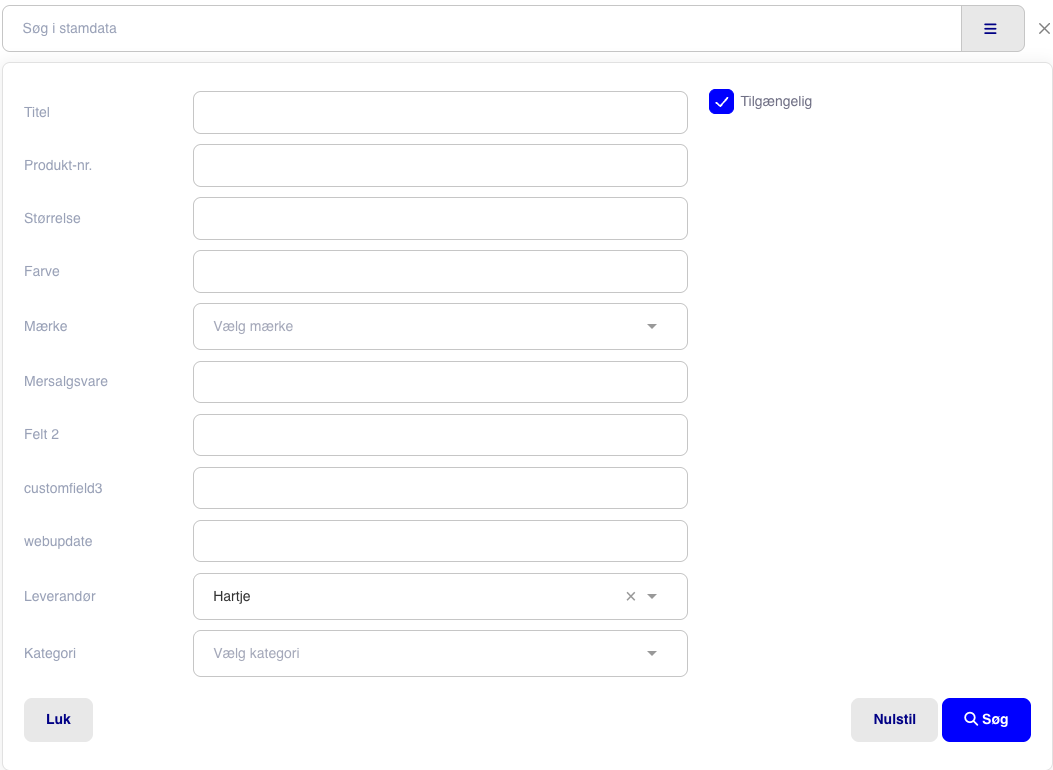
Enter text in the Search master data field. The list updates as you type. To narrow your search, click the icon with three lines (Advanced search). Here you can filter by:
Title, Product no., Size, Color and Brand
Your own custom fields, if enabled
Supplier and Category
Available: only shows products that the supplier has in stock
Click Search. Your active filters are displayed as small tags above the list. Remove a filter by clicking the cross on its tag. Reset clears all filters.
The list shows the title, product no., price, stock status, and supplier/brand. Categories, size, color, and style no. appear under the title. If there are images in the master data, they are shown on the far left.
Price shows the Recommended retail price and, if provided by the supplier, the Cost price.
Stock shows the supplier's stock status; see Supplier stock: see whether the supplier has the item in stock.
Click Title or Product no. in the heading to sort. Click again to reverse the order.
The list shows 25 items at a time. Use the page numbers at the bottom to browse.
How to:
Find the item in the list
Click + (Create item) on the far right
Check the information filled in from the master data, and click Save
Result:
The item has been created in your item catalog with a stock quantity of 0. If the supplier is not already in your system, the system will first open the dialog for creating the supplier. Categories that are not already in your system will be created when you save the item.
Click the shopping cart on the item's row (Add … to shopping list). If the item is already in your system (same product number), the Add to shopping list dialog opens immediately. If it is not, you will first be guided through creating the item and then taken to the dialog.
If the product has a webshop address in the master data, you can also open it in a new tab using the store icon.