With Master Data, you can see whether the supplier has an item in stock before adding it to the purchase list. Stock status is retrieved from the supplier's master data. The feature requires Master Data, and you can only see items that the system can match in the supplier's data.
In stock: the supplier has 10 or more
Low stock: the supplier has 1–9
Out of stock: the supplier has 0
Unknown stock status: the supplier has not provided stock status for the item
The system only shows the status, not the exact quantity.
How to:
Go to Items and open the item
Select the Supplier stock
The system searches the master data for the item using its barcode and product number and displays up to 10 suggestions with the title, price, color, size, product no., category, supplier, and country. Each one shows Stock status. If there are no matches, it says "No matching products found in the master data."
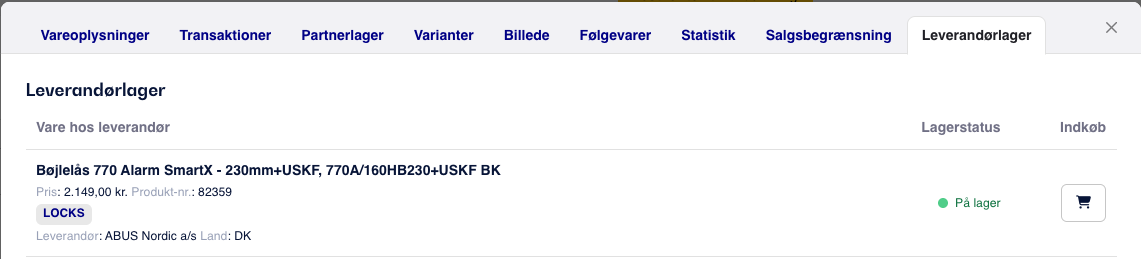
Use the shopping cart next to a supplier to open Add to shopping list. The cart can only be used when the supplier has the item in stock, and is inactive when the item is Out of stock or has an Unknown stock status.
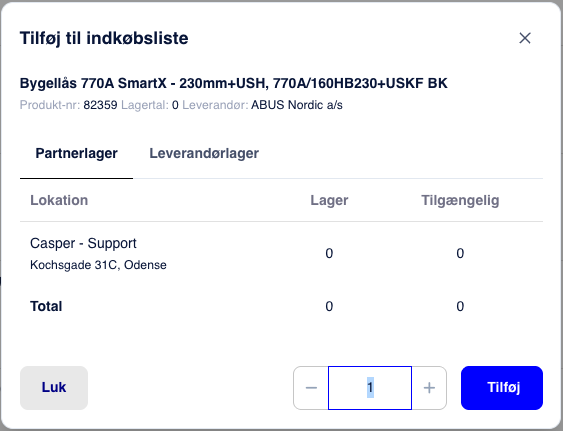
In the Add to shopping list dialog, you will find the Supplier stock tab under the item details. Here you can see the Supplier (with country), Price and Stock status for suppliers that have the item in the master data. If you have partner stores or variants, the Partner stock and Variants tabs are displayed alongside.
The Stock column under Products → Master data shows the same status. Use the Available filter to see only products that the supplier has in stock.