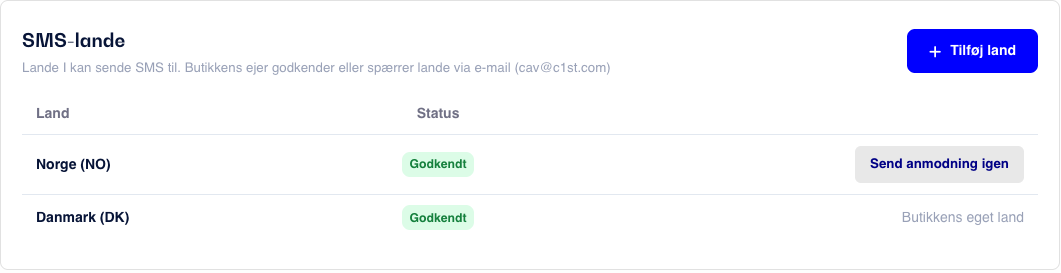
To prevent misuse, the countries you send SMS messages to must be approved by the store owner. The store’s own country is always approved, so if you only send to local numbers, you don’t need to do anything.

The store owner (primary user) approves or blocks a country. The owner receives an email with the request, and the link in the email is valid for 48 hours.
How to:
Go to Settings → the SMS and Email
Scroll down to SMS countries. Here you can see the countries you can send SMS messages to and their status
Click Add country
Select the country and click Send request
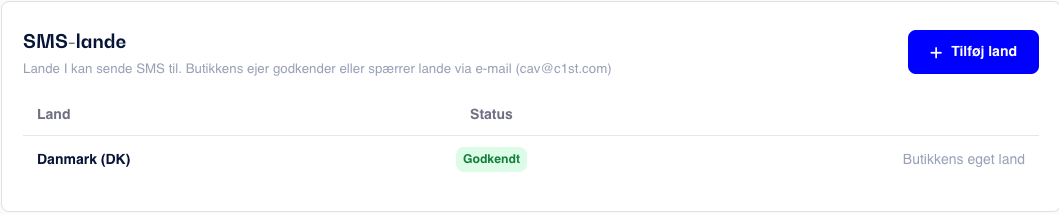
Result:
The country appears in the list with the status Pending, and the store owner receives an email with the request.
Each country has one of three statuses:
Approved – SMS can be sent to the country
Pending – the request has been sent, but the owner has not responded yet
Blocked – the owner has rejected the country
If a request has expired, or you want a blocked country approved, click Resend request next to the country.
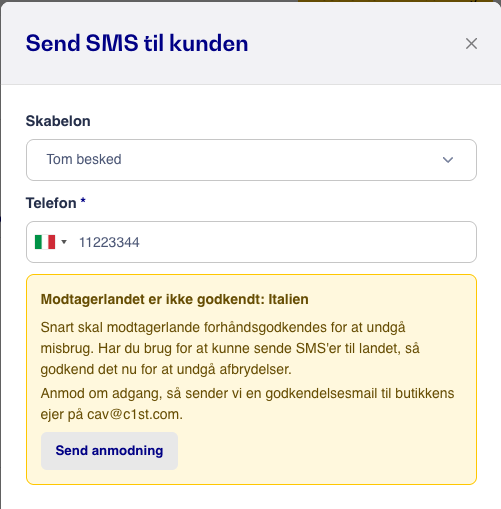
When you send an SMS to a customer or from a work card, and the phone number belongs to a country that is not approved, a yellow warning appears below the phone number: Recipient country is not approved.
Here's how:
Click Send request in the warning
Send your SMS as usual – this is still possible as long as the restriction has not taken effect
If the country is blocked, the warning states that SMS messages to the number will soon be rejected. You can request access again in the same way.
Open the email [Action required] Request to send SMS to a country
Click the link in the email within 48 hours
Click Approve country or Block country
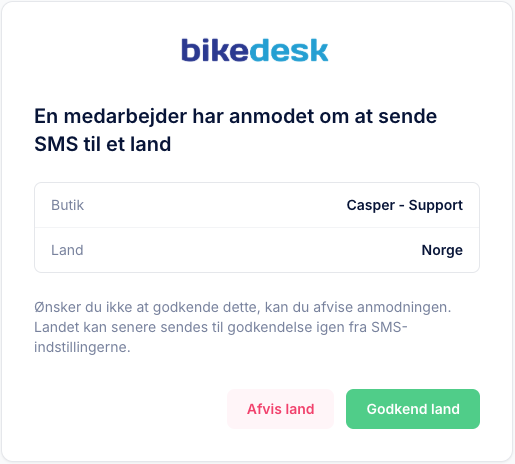
Result:
The status changes to Approved or Blocked under SMS countries. If the link has expired or has already been used, the employee can send the request again.