This guide is made for OKI B432 with an extra paper tray attached at the bottom.
But the guide also works even if you don't have an extra paper tray attached.
Setting up the printer menu: NOTE: On the printer itself, it's important to set the right paper size for each tray - otherwise it'll throw an error and try to print from the "MP tray".
Use the arrow keys and find "Menu's"
Press "Ok"
Press "Ok" on "Tray configs"
Find for example Tray 1 and press "Ok"
For paper size, press "Ok"
Use the arrow keys (up and down) to pick the right paper size that's loaded in the tray. Press "Ok" when that's selected
Press the "back arrow" to go back and repeat with the remaining trays so they match the paper loaded. A6 is usually put in the front tray which folds down, this is called "MP tray" in the printer's menu and "General tray" in Windows.
The printer needs to be added x number of times, depending on how many paper sizes you have.
Download the driver for the printer here
Connect the printer to the computer
Go to printers and devices on Windows
Find the printer and click on printer properties
Hit PORTS and check which port the printer has: (e.g., USB004)
Go back to the printer overview and hit "Add a printer or scanner"
Click on "the printer that I want isn’t listed."
Choose "Add a local printer or network printer with manual settings."
Use an existing port -> pick the port (e.g. USB004)
Pick OKI and choose the driver for the model name OKI B432(PCL)
Use the driver that's currently installed
Name the printer A4
Find the printer again in the printer list, it's probably called A4 now
Click on it and hit Manage
Click on printing preferences
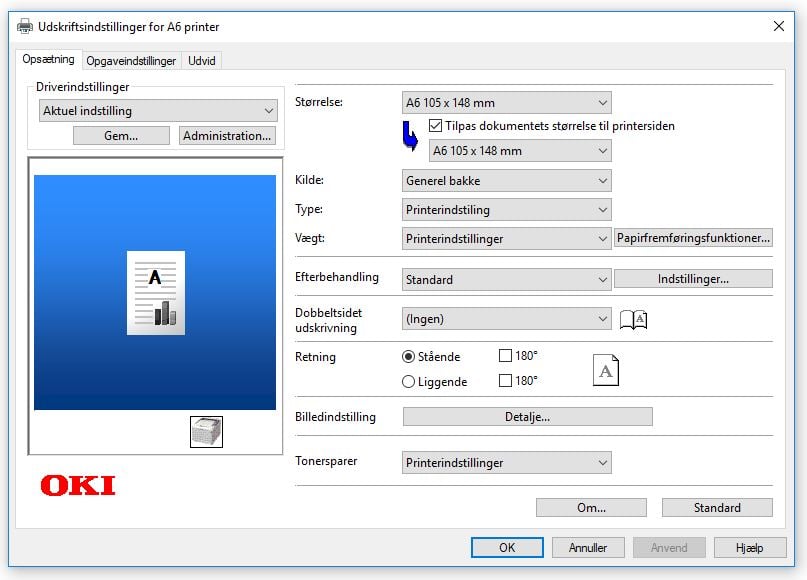
Make sure Source is set to the tray with the selected paper in it
Repeat steps above 4-16 and make paper sizes A5 and A6 as well.
A6 is placed in the "general tray".
Special for A5 and A6 print: In size, pick A6 and check the box for "Fit document size to printer page", below that, select A6 again.
Do the same for A5.
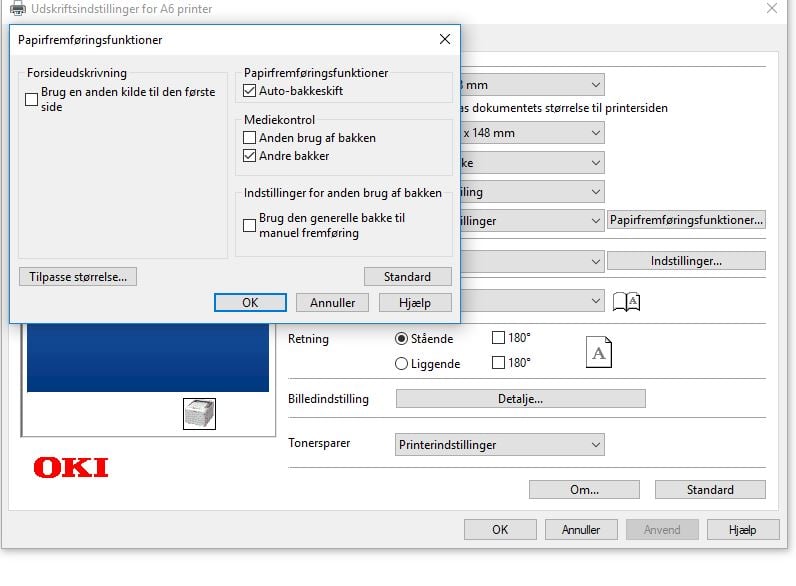
Optional: Press "Paper feed function" and uncheck all the boxes.
In the Bikedesk setup (settings->Print) make sure Price tags, Service cards and Invoice are all set to A4 size.
NOTE: You need to load a specific template in the configs - (Jupiter Lyngby) has this.