In Statistics, you can get your data in two ways: as an export, i.e. a file you open in Excel or Google Sheets, or as a table directly in Statistics, which you can sort, customize, and download.
If you just want to see a figure, e.g. revenue or number of sales in a period, it is quicker to use All statistics in the menu bar at the top of Statistics. Here you can search for all metrics without exporting a file.
Here's how:
Go to Statistics.
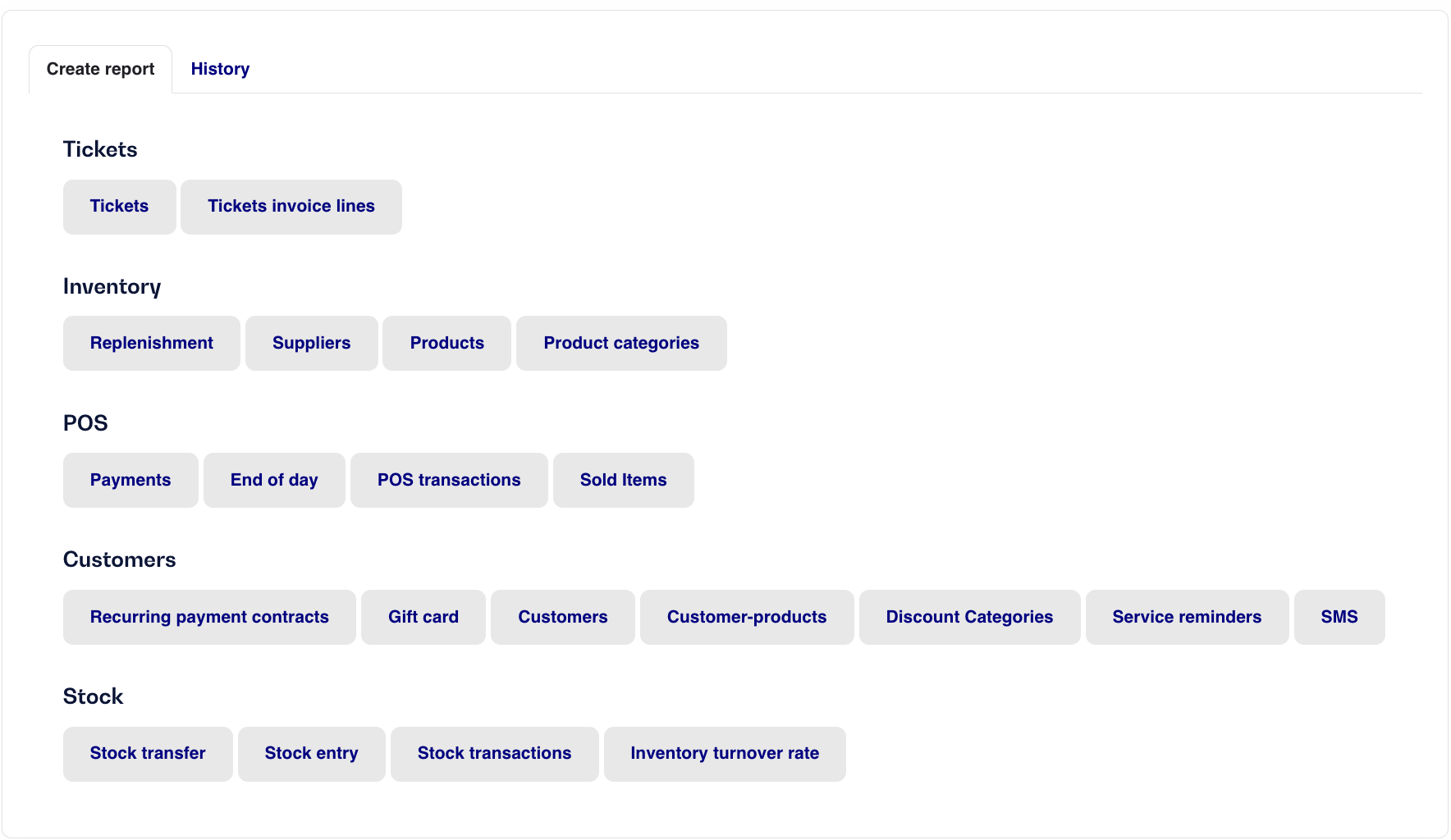
Click Export in the menu bar at the top (next to Cash register, Work orders/Case management and Products).
Make sure you are on the Create export tab.
Click the export you need, e.g. Sold products.
Select a period using From and To, and select any filters. The fields depend on the export.
Select Format (see section 3) and click Download.
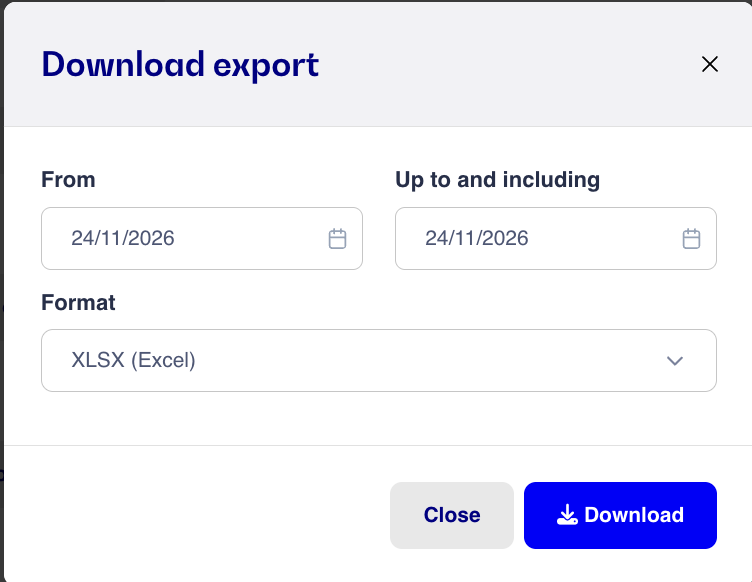
The export is generated in the background. You can wait and get the file right away, or close the window and download the file later under the History tab (see section 4).
You can export:
Work orders: Work orders, Work order materials
Items: Purchases, Suppliers, Products, Product categories
Cash register: Payments, Daily reports, Cash register transactions, Sold items
Customers: Payment agreements, Gift cards, Customers, Customer items, Discount categories, Service reminders, SMS
Inventory: Inventory transfers, Inventory receipts, Inventory transactions, Inventory turnover, Partner inventory
Please note that you only see the reports that match your store's setup. Stock transfers are shown, for example, only if you transfer stock between stores, and Partner inventory only if you share statistics with partners.
In two places in Statistics, you can view your data in a table before downloading it:
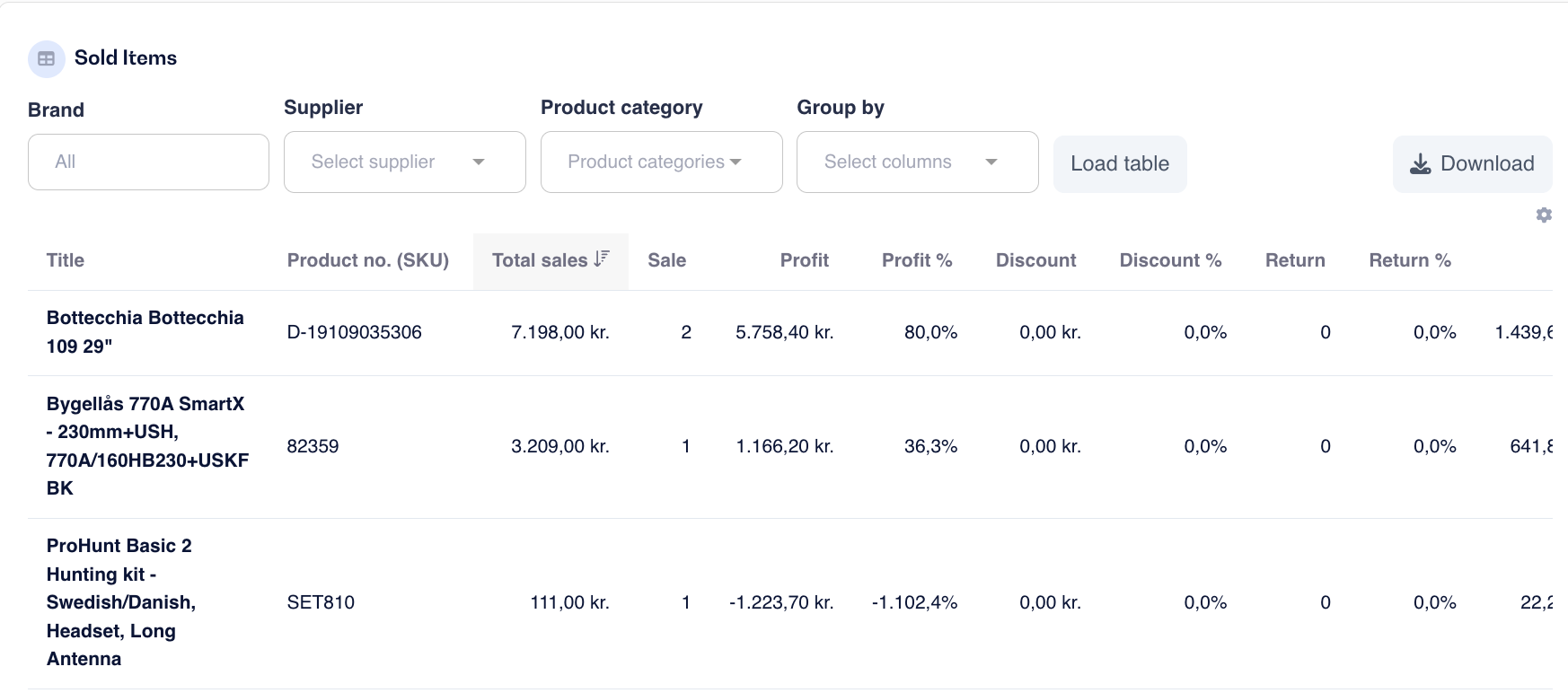
Sold items on the Checkout page: which items you have sold during the selected period, including revenue and number of sales.
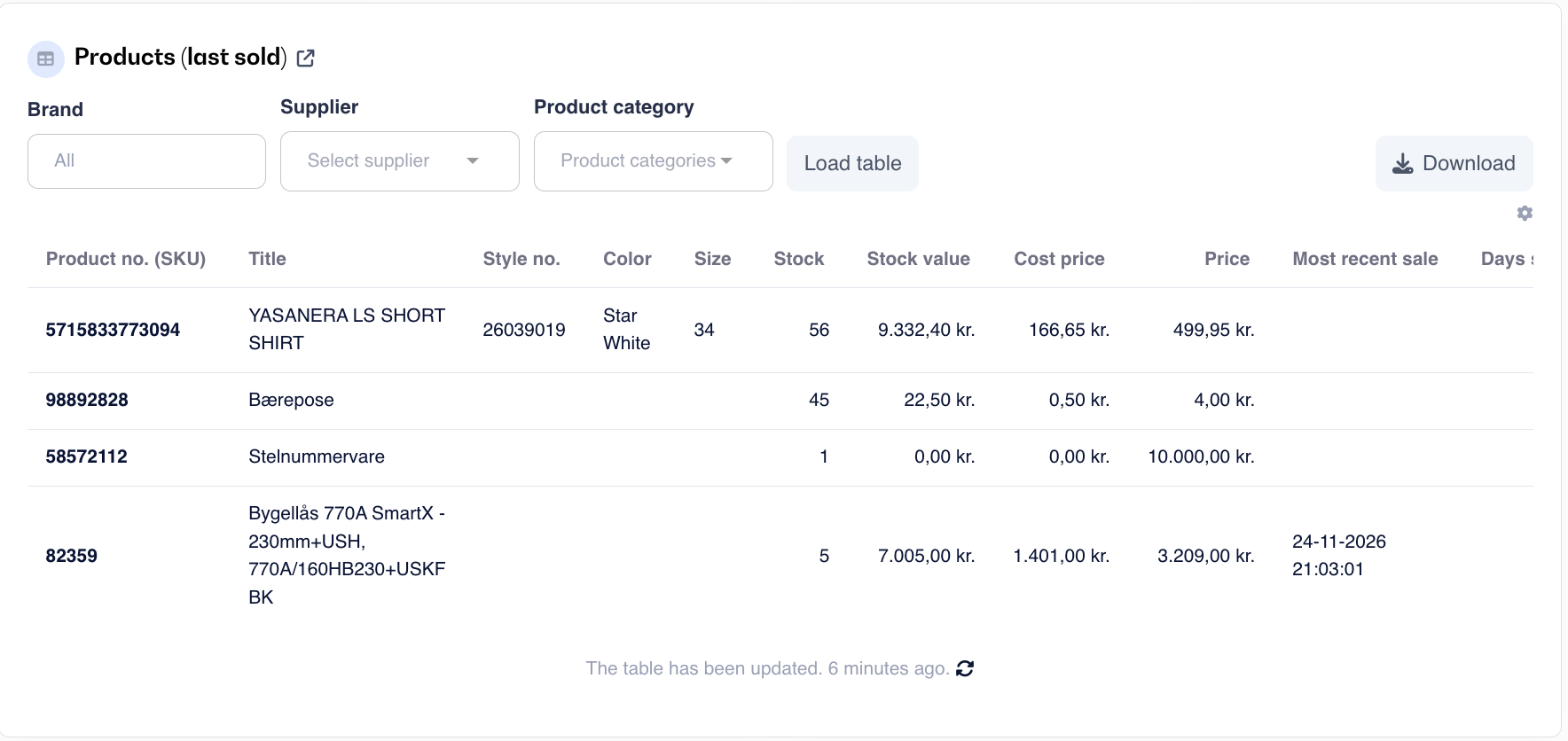
Items in stock/Days in stock on the Items page: items in stock, when they were last sold, and how many days they have been in stock.
The table is only retrieved when you click Load table. Once it has loaded, the time when the Table was updated is shown below it. Click the arrows next to it to retrieve it again.
On the Checkout page, you can see a short version of the table. It follows the period you have selected at the top of the page.
Click the heading Sold items to open the full view. Here you can filter by Brand, Supplier and Product category, and group the rows using Group by. For example, if you group by brand, you’ll get one row per brand with the totals.
Example scenario:
The season is coming to an end, and you want to find the items that have been in stock the longest so you can put them on sale.
How to:
Go to Statistics and click Products.
Find the Items in stock/stock age table, and optionally select Brand, Supplier or Product category.
Click Load table.
Result:
You get a list of items in stock with stock quantity, inventory value, prices, Latest sale and Days since last sale, sorted by latest sale.
If you need more options, click the heading. This opens the full Product export, where you can choose Stock status, Up to and including, Series only, Include deleted items, Brand, Supplier, Product category, Columns, Group by, Sort by and Direction.
Click a column heading to sort by it.
Click the gear above the table to choose which Columns are displayed.
Click Download to download the table as a file.
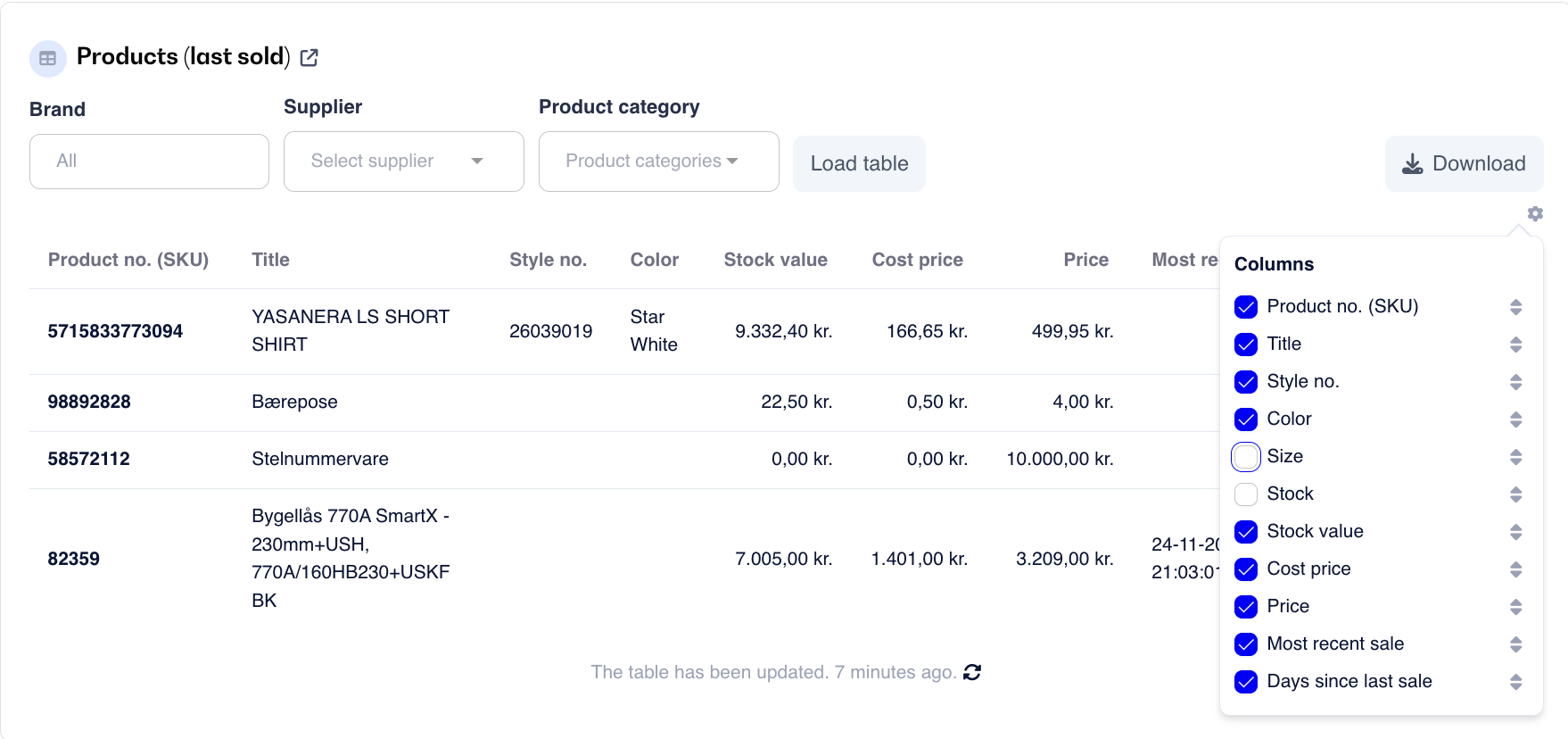
NOTE: If you have loaded the table, the file will have the same columns and sorting as the table. What you see is what you get.
When downloading, choose Format:
XLSX (Excel) – a standard Excel file. The best choice in most cases.
CSV (Excel) – a CSV file that can be opened directly in Excel.
CSV (Google Sheets) – a CSV file for Google Sheets.
CSV (custom) – for other programs. Here you choose Delimiter, String and Escape character.
All exports you download are saved under Statistics → Exports → the History tab. You can also get there via the link Find previous exports in history in the download window.
Here you can filter by user and Status (Completed, Processing, Failed or No data). Click the file name to download the file again.
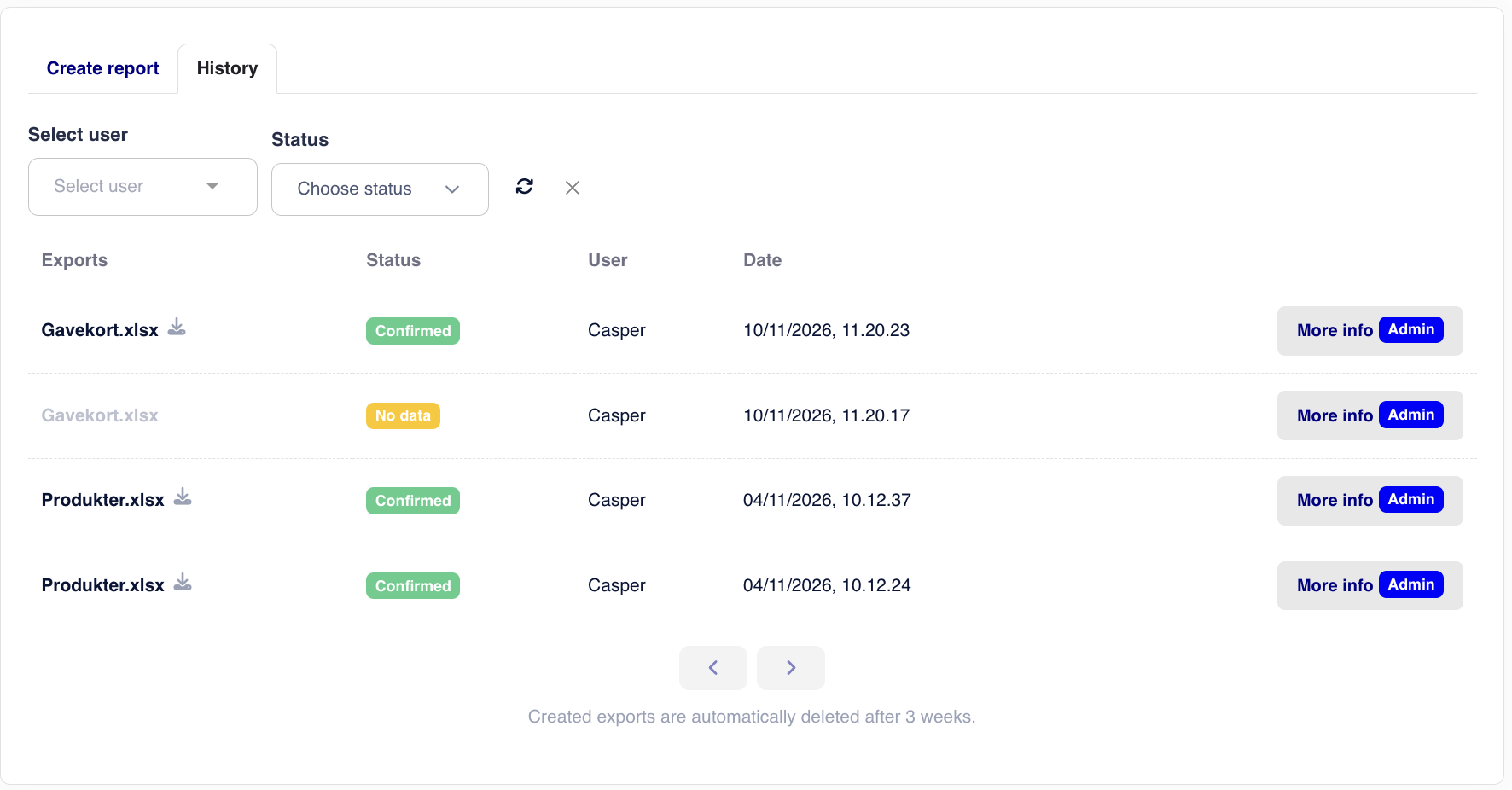
Please note that exports are automatically deleted after 3 weeks. Tables that you have only loaded and not downloaded are not included in History.
Can you create an export for a past date, for example, an inventory list as of a specific date?
Yes, for some exports. In Products you can, for example, select Items in stock and a date in Up to and including. Please note that this is not possible for all exports.
Can the system automatically back up an export?
No. An extract is only created when you click Download, and it is only available in History for 3 weeks.
I get the message "Unable to create extract because there is no data."
There is no data matching the period and filters you selected. Try a longer period or fewer filters. The tables will instead display No data found for the selected filters.
The extract I'm looking for isn't available. Can you create it?
Perhaps. If the data exists in the system, it can probably be done, but it requires development and is therefore a paid task.
Some data in an extract appears to be missing or incorrect?
Contact our support by email with as detailed a description as possible, and attach the file so we can take a look.
Keywords: Data - info - extract - export - CSV - Excel - table - retention period - backup - copy