If you experience that your receipt printer or label printer suddenly stops printing, there's a good chance you can solve the problem easily and simply with these few steps.
NB: This guide is primarily developed for printing issues on Windows computers, as Mac does not have the same challenges or user interface.
Is the printer powered on?
Is the printer connected to the computer?
Is there enough receipt roll/labels in the printer?
Have you restarted the printer and computer?
Is the printer cover closed properly?
- If you can say yes to all of the above, then read on!
In many cases, a full/blocked printer queue is the reason why nothing can be printed on your printer. This can be due to paper jams or the printer reporting an error to the computer which has stopped the print.
Clear the printer queue
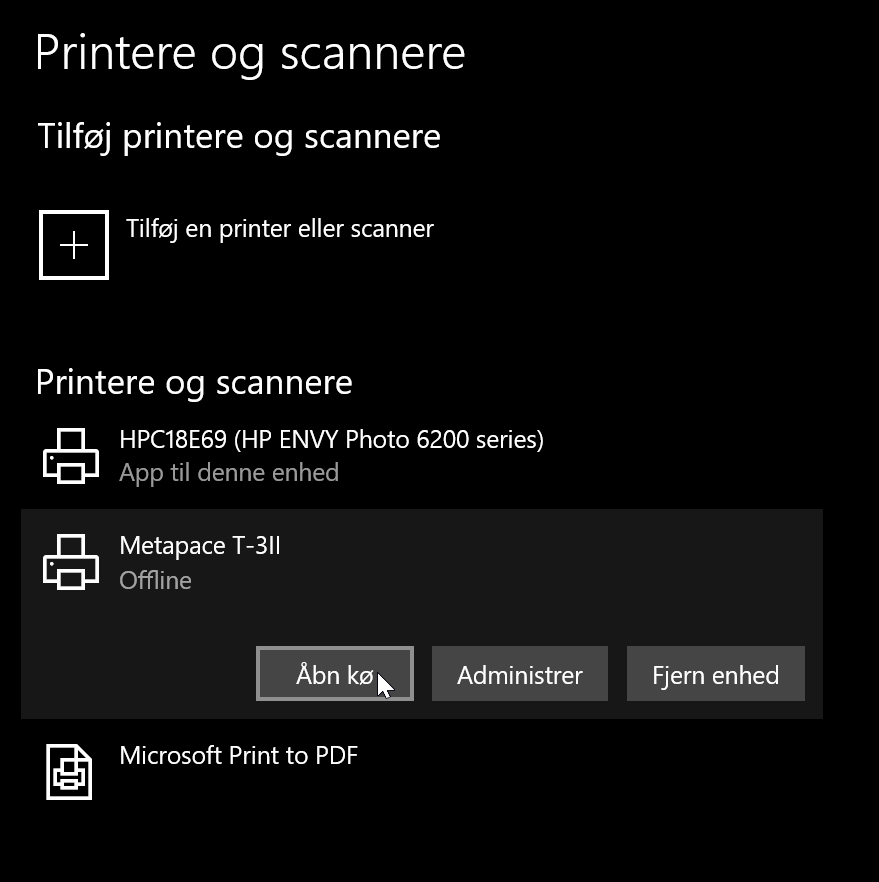
Open the Start menu (⊞) and search for or navigate to Printers and Scanners (🖶)
Find the printer that is having issues and click on Open queue.
If there are documents in the queue, you can select them all (CTRL+A) and choose Cancel.
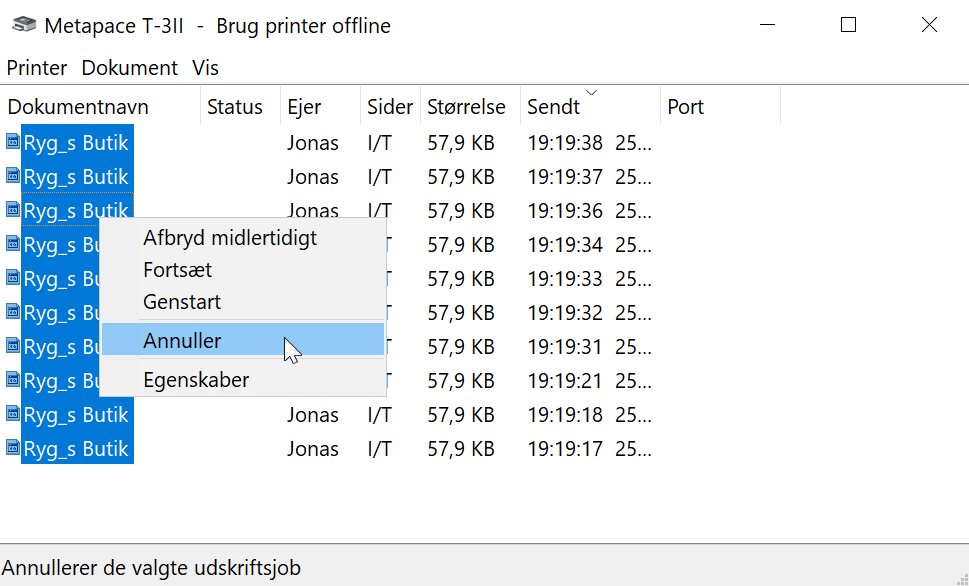
This should remove the documents in the queue within 30 seconds. If this does not happen, you can try canceling again, otherwise restart your computer.
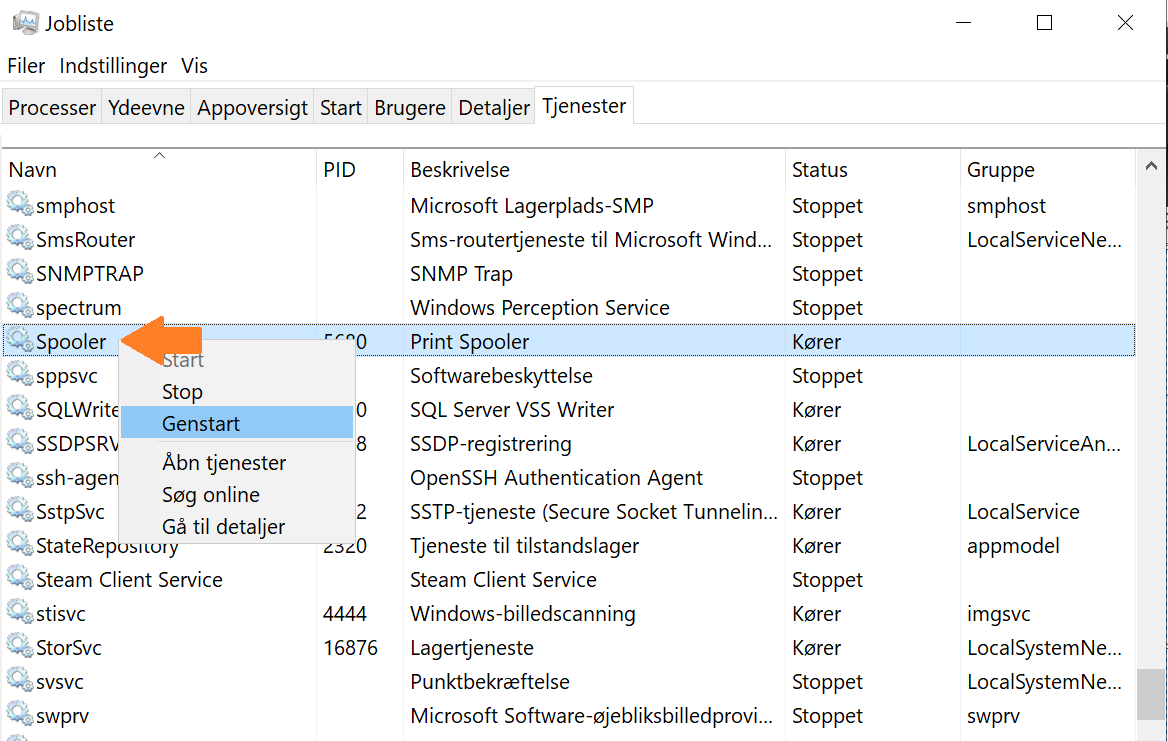
It may sometimes also be necessary to restart the system service 'Print Spooler' which handles printing on the computer. For example, if printing is still stuck or there is still no print output even with an empty printer queue.
Right-click on the taskbar at the bottom and select Task Manager.
Navigate to the Services tab and scroll down until you find the service 'Spooler'
Right-click on Spooler and select Restart.
Wait while the service restarts - it may take 1-2 minutes.
Then try printing a test page from the printer settings or via the app.
After this, in most cases the connection to the printer will be restored and the print queue should now be empty. If this does not solve the problem, you can try, as a last resort, restarting your computer if you have followed the previous steps.
You should always be able to go to Settings -> Print in our app and look under the print type that is causing printing issues to see which printer is normally selected.
*Receipt printers are typically called Star TSP143, Metapace T-3 or something else.
Label printers are typically called ZD220 ZPL, Brother QL-700 or other.*
*Can vary by manufacturer and model, so always check your own settings in the app to be safe.
If you use Cloud Print instead for a STAR receipt printer, the print is sent via the internet directly to your printer and bypasses Printdesk.
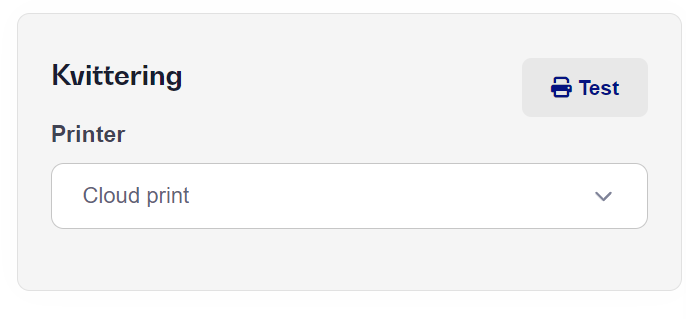
If you therefore experience printing issues with your Cloud receipt printer, you should check the following before contacting our support:
That your printer is turned on
That you have restarted your printer (it can take up to 3 minutes)
That your printer has internet connection through your router.
That there is sufficient paper in your receipt printer (a very thin roll can cause errors)
If none of the above solves your printing issue with your Cloud printer, please contact our support and tell them which model you have.
If you are still experiencing printing issues, you are very welcome to contact our support via email or chat.
Remember to provide information about which type of print you are having issues with as well as printer type/model.
Keywords: printer error label receipt receipt price label exchange label A4 A5 A6 queue