Note: it costs money to send SMS messages How much do SMS cost?
SMS sending must be activated. Contact our Support department via chat or email to have it activated.
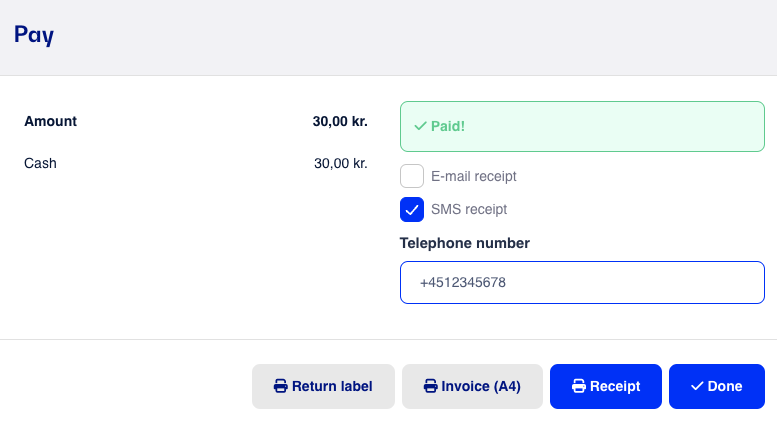
When you have completed a sale at the register, you can choose to send the customer a receipt by SMS before finalizing the transaction.
When the sale is completed, you can choose to send the receipt as an SMS.
Simply check the box for SMS receipt, enter the customer's mobile number, and click Done.
The customer will receive an SMS with a link to view their receipt within 1 minute.
You can also send an SMS receipt for a previously completed sale via the sales history. You can either find the sale manually in the sales history or by scanning the customer’s receipt.
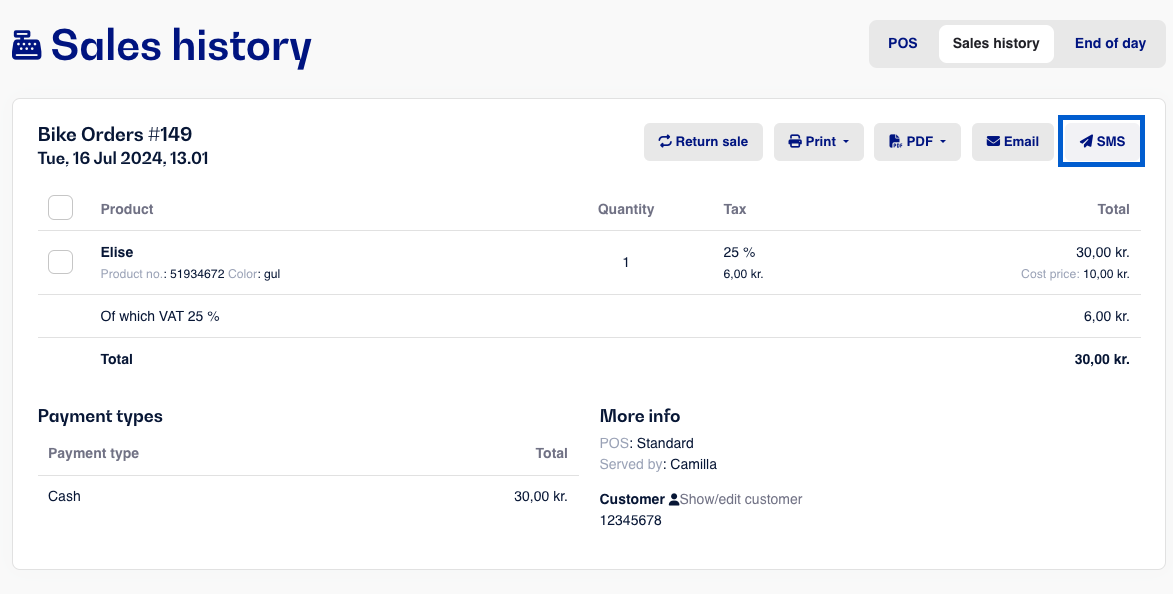
Open the sale you want to send an SMS receipt for.
Click the SMS button at the top right corner of the sale.
Enter the customer's mobile number and click Send.
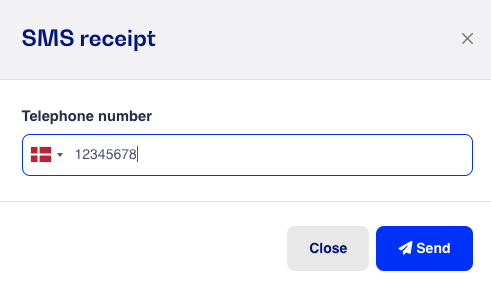
The customer will receive an SMS with a link to view their receipt within 1 minute.