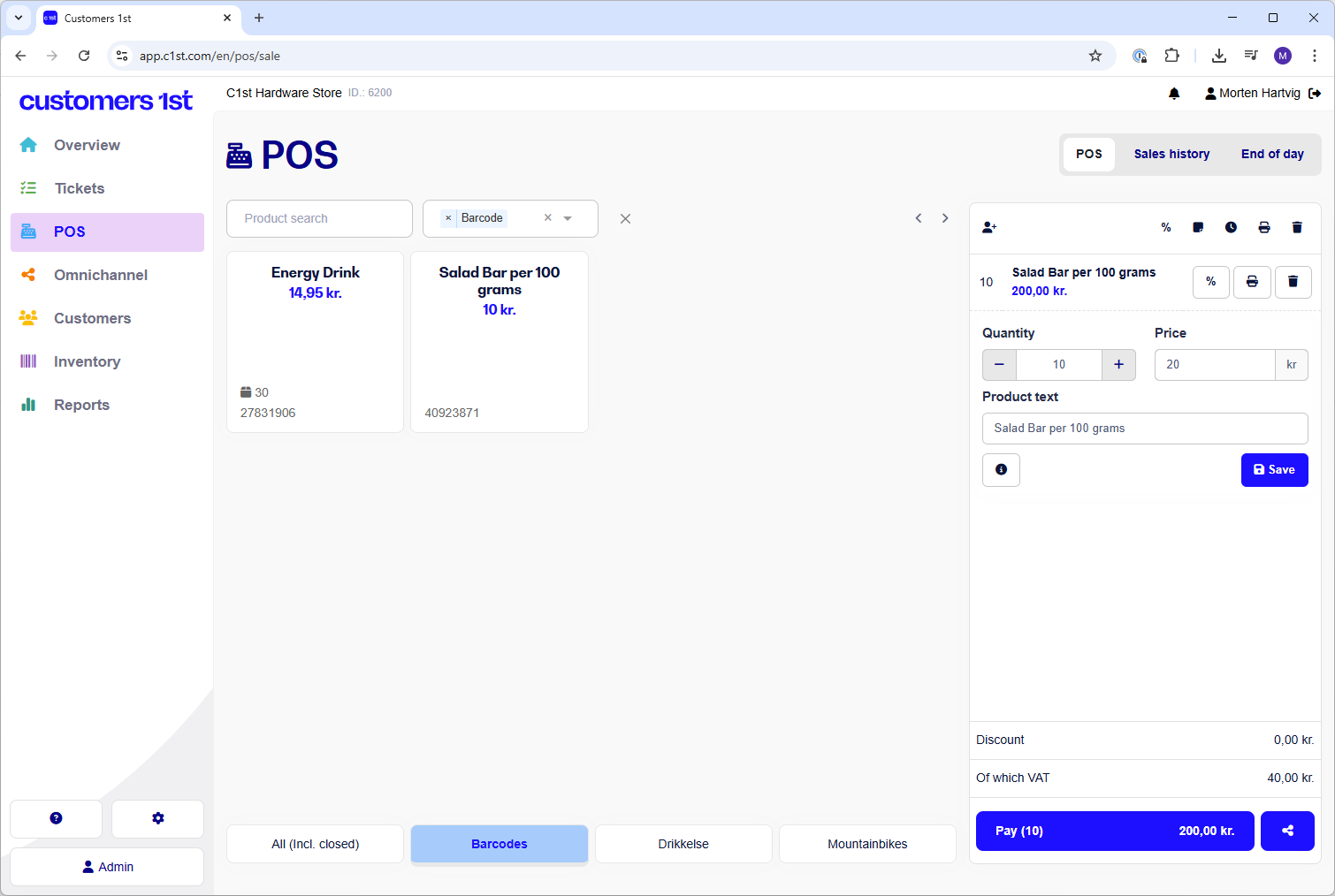
Customers 1st can read dynamic barcodes, which streamlines your checkout process and improves efficiency. With these simple barcode formats you can now instantly add specific quantities or prices to your customers’ cart with a single scan.

Format: #1#<stregkode>#<antal>.
Example: #1#23669581#10.
Example scenario:
You have a specific sports drink that you sell individually, but on hot summer days customers tend to buy 10 bottles at a time. Since you’re tired of having to scan the product 10 times (or manually adjust the quantity in Customers 1st), you want a single barcode that you can just scan once and have it add 10 bottles.
Here’s how:
Create a barcode using the format: #1#<stregkode>#<antal>
Print it (for example on a label) and stick it to your checkout
Scan the printed barcode when the customer wants to buy 10 bottles of your popular sports drink
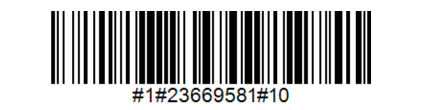
Result:
10 beverages will be added to the cart when the barcode is scanned in Customers 1st.
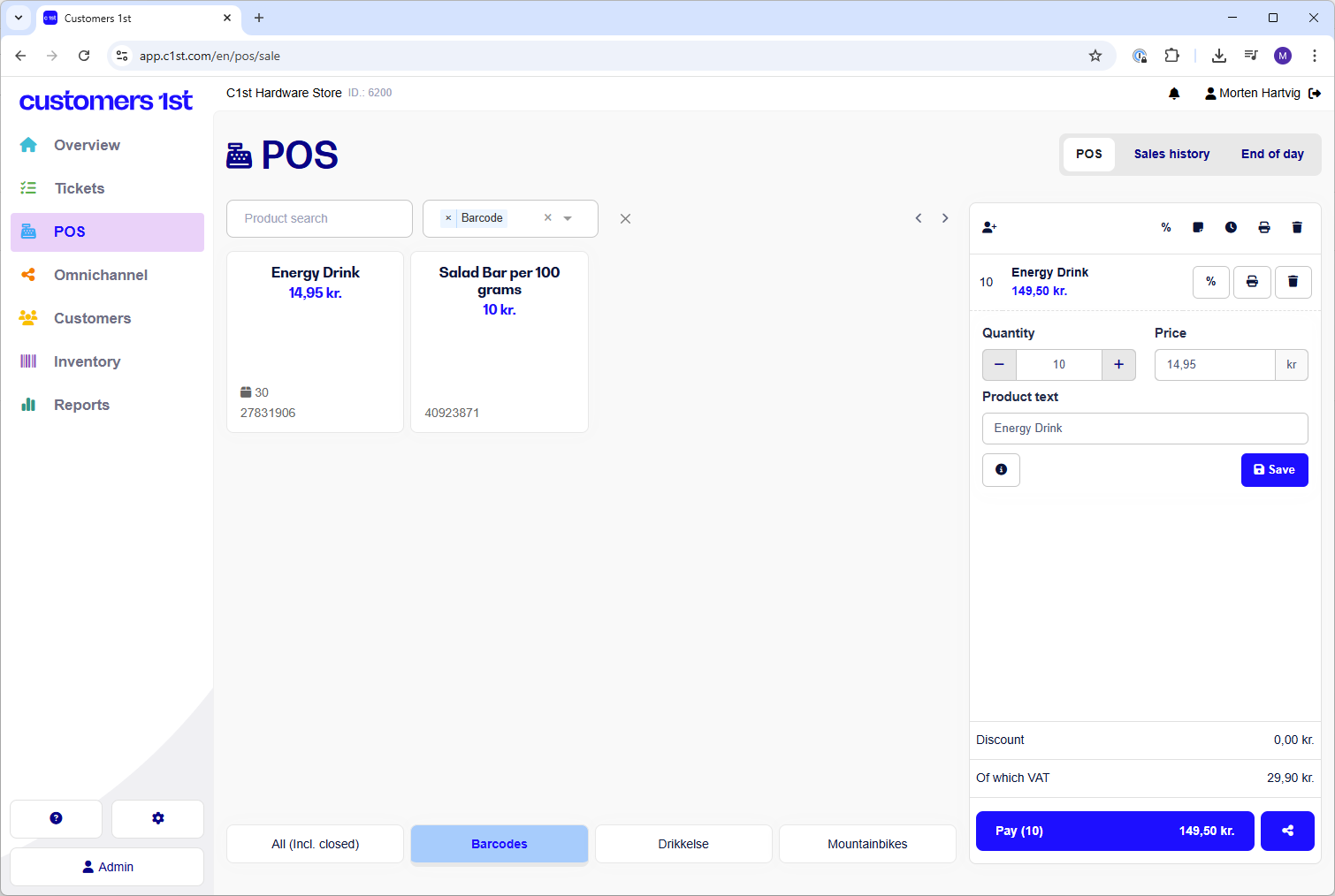
Format: #2#<stregkode>#<pris>.
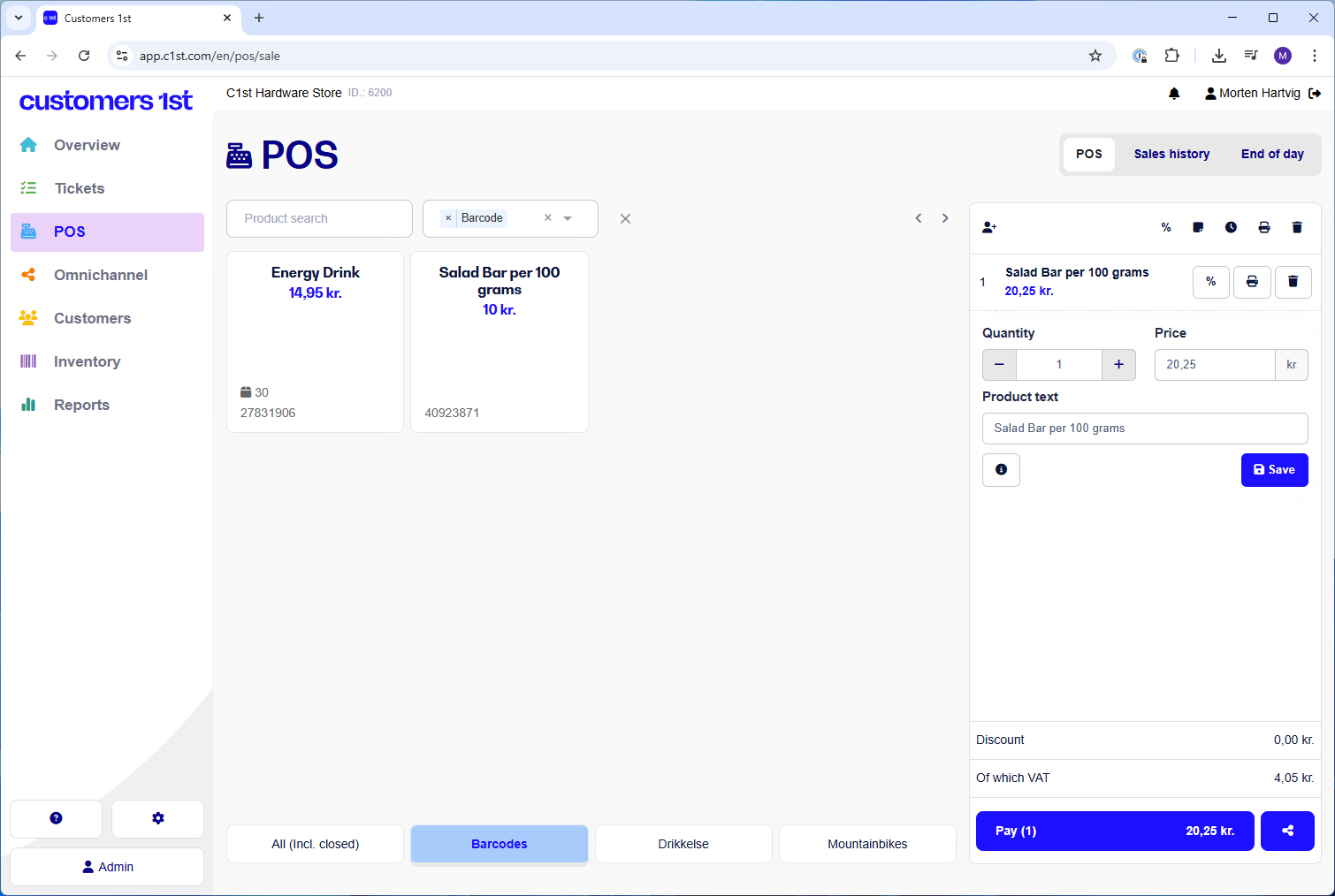
Example: #2#65140772#2025. Note that the system assumes the last two digits are decimals. For example, 2025 will be DKK 20.25.
Example scenario:
You have a "build your own salad" bar where customers pay DKK 10 per 100 grams. A customer can weigh the salad and get a barcode printed for payment.
How to do it:
Have your scale configured to print barcodes using the format #2#<stregkode>#<pris>
A customer weighs their salad and the scale shows that it costs DKK 20.25
The customer clicks print and receives a barcode that they can put on the plastic container
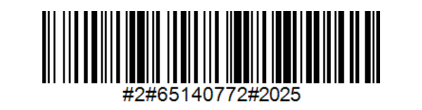
Result:
When the barcode is scanned, a salad is added to the cart with the price DKK 20.25.
The third and last way is a combination of both dynamic quantity and price. Whether you have a scale with a printer or generate a barcode manually, you need to use the format below.
Format: #3#<barcode>#<quantity>#<price>.
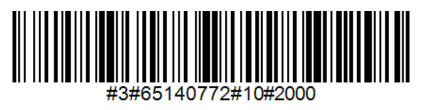
Example: #3#65140772#10#2000.
Result
In this example, scanning the barcode will add 10 salads at DKK 20 each, giving a total of DKK 200.