To issue a store credit voucher, the total sum of the product lines in the checkout must be negative.
You can do this either by clicking Return on a sale in your sales history, or by manually adding an item to the checkout and changing the quantity to a negative number.
When the amount is negative, a button will appear in the bottom-right corner next to the Pay button, labeled Store credit voucher.
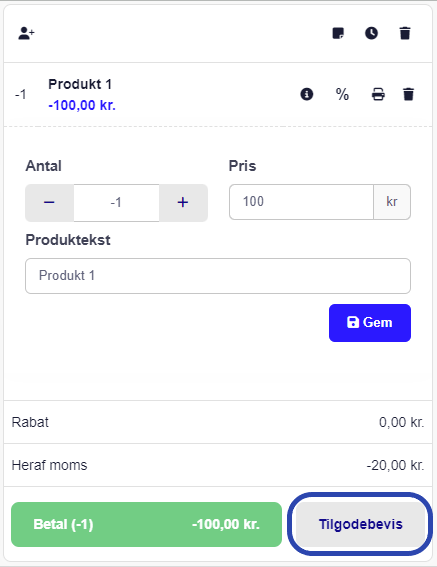
Click the button to issue a Store credit voucher, which is added as a product line in the checkout.
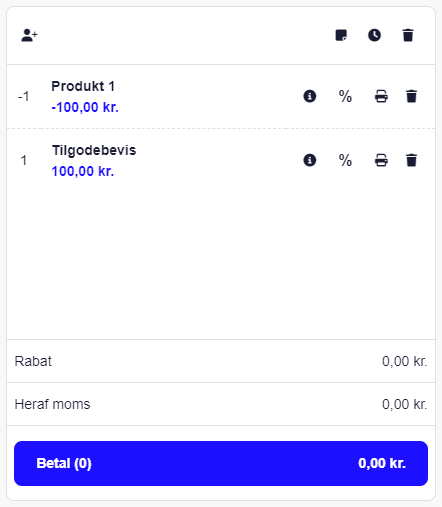
Then click pay and simply select "Cash" as the payment type.
The store credit voucher is then printed if you click Receipt.
Issued store credit vouchers can also always be found under Customers -> Gift cards etc., where they can be reprinted.
Learn more about returns here.
Learn more about returning vouchers here.
Keywords: Voucher - Credit note - Gift card