To issue/sell a gift card, do the following:
Go to Checkout
Find the gift card item and click it (it has already been created for you with product number giftcard)
Enter the amount for the gift card and, if applicable, an expiry date if you do not want to use the standard period. If you have enabled manual gift card numbers, you can also enter a Gift card number (see below).
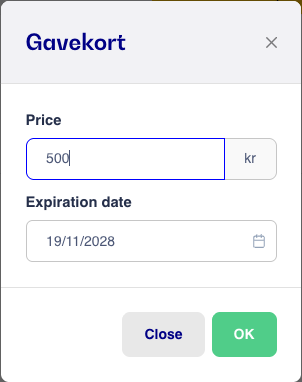
4. Click OK and the gift card will now be added as a line item
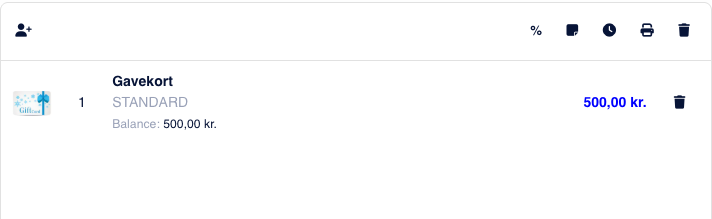
5. Press Pay and choose how the customer will pay for the gift card, in cash, by card, or similar.
6. Press Receipt and both a receipt for the purchase itself and a gift card with a barcode and gift card number will now be printed. This only applies if you have automatic printing enabled with Printdesk. Read more here.
You can also send the gift card to the customer by email.
By default, the system assigns the gift card a number. If you already have pre-printed gift cards with your own numbers, you can instead enter the number manually when issuing the gift card at the register.
How to enable this:
Go to Settings → Checkout and find the Gift cards section.
Check Allow manual gift card number when issuing at checkout.

How to use it:
Tap the gift card item in Checkout.
Enter the amount, and type/scan the number in the Gift card number (optional) field. If you leave the field blank, the system will choose a number automatically.
Tap Ok and complete the sale as described above.
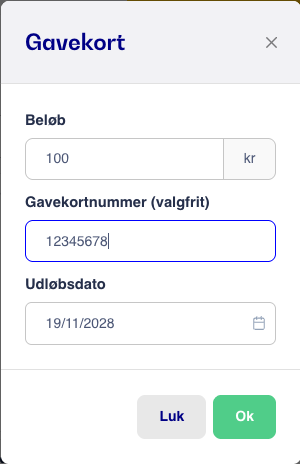
We recommend that the number is between 8 and 20 characters long, and a number can only be used for one gift card. If the number is already in use, The gift card number is already in use. will be displayed. In that case, choose a different number.
PLEASE NOTE: The number is taken as soon as the gift card is in the cart. If you leave checkout with the gift card in a sale that you do not complete (e.g. by closing the tab), the number cannot be used again until it is automatically released. A “locked” number is typically released the next day.
If you wish to return the gift card, read more here.