The gift card export gives you an overview of the gift cards, store credit vouchers, and deposits issued by your store, and how much is still outstanding to customers. It’s useful for you or your accountant/bookkeeper.
The export selects gift cards based on the date they were created, not when they were used. It includes all types: gift cards, deposits, and store credit vouchers.
Go to Statistics.
Click Export and select Gift cards.
Optionally select Type and Status (see below).
Select the period using Created from and Created through.
Select a file format, e.g. XLSX (Excel), and click Download.
Open the file in Excel (Windows) or Numbers (Mac).
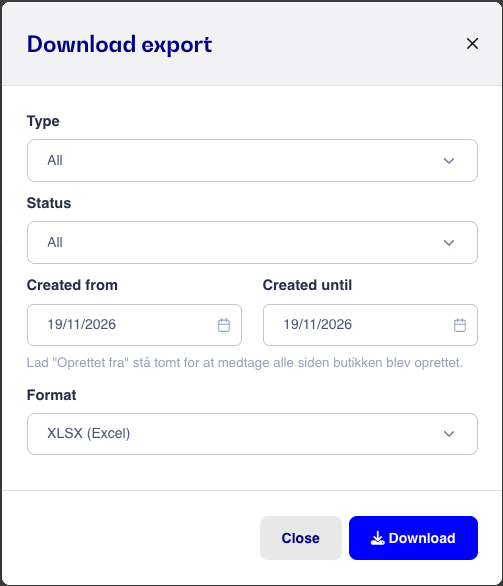
Period: By default, both dates are set to today. If you want all gift cards, leave Created from blank. This will include all gift cards, including those created before the store was set up in the system, such as imported gift cards. If Created through is left blank, gift cards up to and including the end of the year will be included.
Type: Select All, Gift cards, Deposit or Credit voucher.
Status: Select All, With balance or Expired or used up. If you only want to see outstanding items, select With balance.
Please note that you will be notified that there is no data if no gift cards match your selections.
Each row is one gift card, voucher, or deposit. The most important columns are:
amount is the amount originally issued.
amountspent is the amount spent.
balance is the remaining amount.
createddate and expirationdate are the creation and expiration dates.
status is Active or Inactive (expired or used up).
latesttransactiondate is the date of the most recent use or change.
The file also contains the gift card number, type, customer's name and phone number, and the payment number for the sale in which the gift card was issued.
NOTE: At the bottom of the file, there is a total sum of balance, which is the total outstanding amount.
Keywords: Deposit - Prepayment - Partial payment - Credit